Texture Animation
A Channels track steps a glyph's texture_id through a numbered image sequence — flipbook animation played on the surface of a 3D object, alongside a video texture.
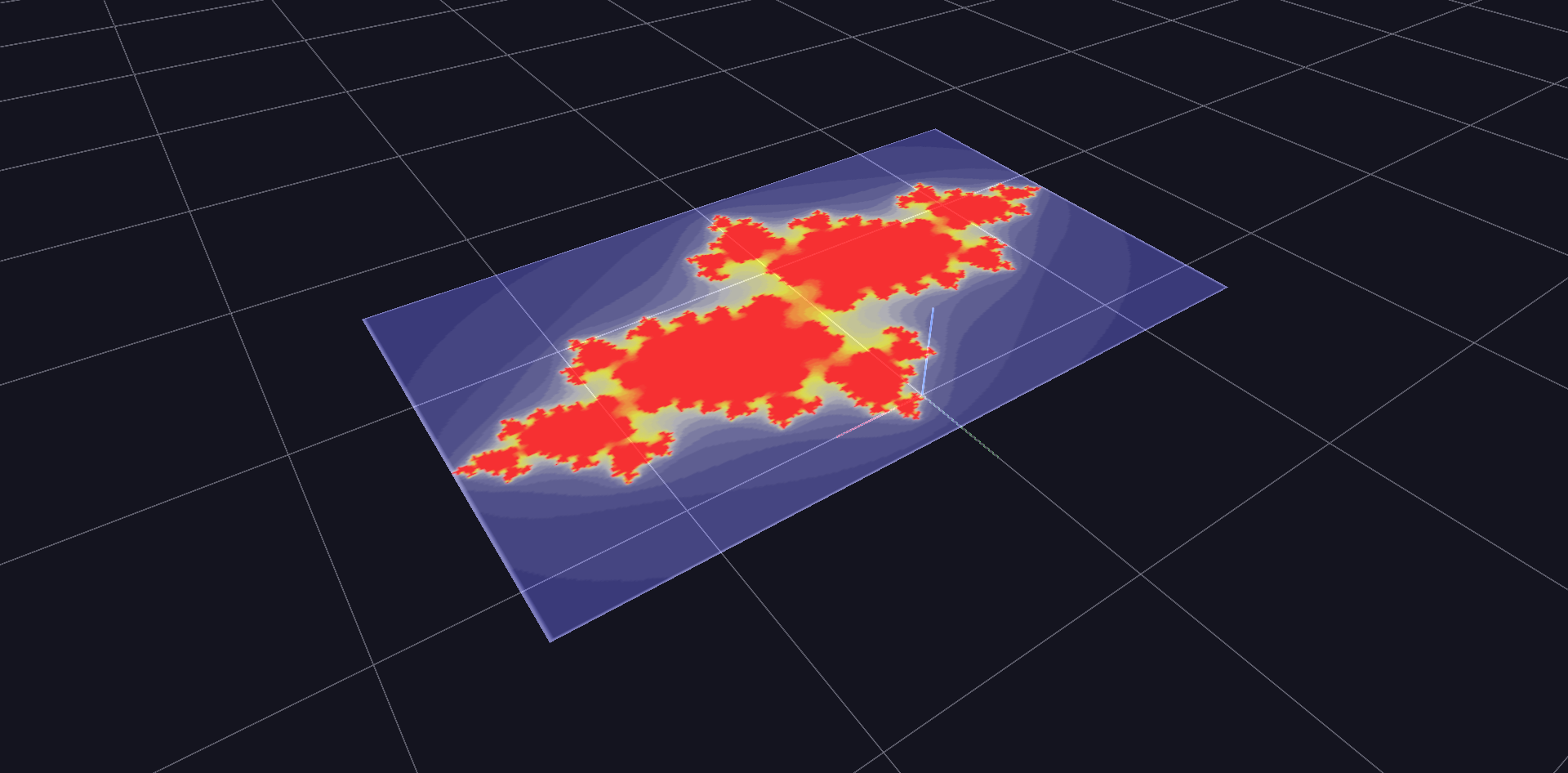
Try it: download this example below (or the full examples set), then open Texture_Animation_Example/texture_animation_gv_node.csv — or just drag its folder onto the GlyphViz window. Press Space to start the animation.
What it is
A single flat panel hangs in space, and a Channels track changes which image is painted on it, one image per frame. That is a flipbook. The twenty images are a numbered sequence of Julia-set renderings, so when you press Space the fractal appears to change shape, even though nothing in the scene is changing except one number: the panel's texture_id.
It is the smallest possible use of texture animation, and a good model for any image sequence you want to play on a surface: slides, rendered frames, satellite passes, microscope stacks.
How it works
- Textures are numbered by folder position. Every image in the scene's
media/folder gets atexture_idequal to its position in the sorted folder, starting at 1. Here,map00001.jpgis texture 1,map00002.jpgis texture 2, and so on up tomap00020.jpg. - A node shows the texture its
texture_idnames. The panel is saved with no texture assigned, and the channel supplies one from the first frame. - A channel steps that number. The map file has one mapping, channel 1 to the attribute
texture_id, and the tracks file has one column that simply counts 1, 2, 3 up to 20. Each frame, the panel's texture jumps to the next image.
The scene is one node, the Julia-set panel, plus a one-line tag file and the two Channels files. The panel uses the Grid geometry, a flat rectangle that takes an image across its whole face.
Things to try
- Scrub the animation. Stop playback and drag the Channels slider: the panel steps through the images exactly as you move.
- Show a single image. Select the panel and change its Texture ID in the Properties panel to any number from 1 to 20.
- Play a video on the same panel. The
media/folder also holds a short video. Images are numbered first and videos after them, so the video is texture 21. Set the panel's Texture ID to 21 and it plays there instead. - Use your own images. Replace the files in
media/with your own numbered frames, keep the names in the order you want them played, and make the track count up to the number of images.
Things to know
- Sort order is the animation order. Zero-padded names such as
map00001.jpgsort correctly. Without the padding,map10.jpgwould sort beforemap2.jpg. - Texture changes are steps, not blends. The engine does not interpolate between images. If you want a smooth transition, supply the in-between frames.
texture_idre-places nothing. Unliketopoorratio, switching textures changes only what is drawn on the node. The Channel Parameters example shows the attributes that rearrange a node's children.
For the full list of what Channels can animate, see the Channels Animation reference.